Proposed and designed a feature to enhance data compilation, boosting productivity in Notion.
This case study is not affiliated with or endorsed by Notion.
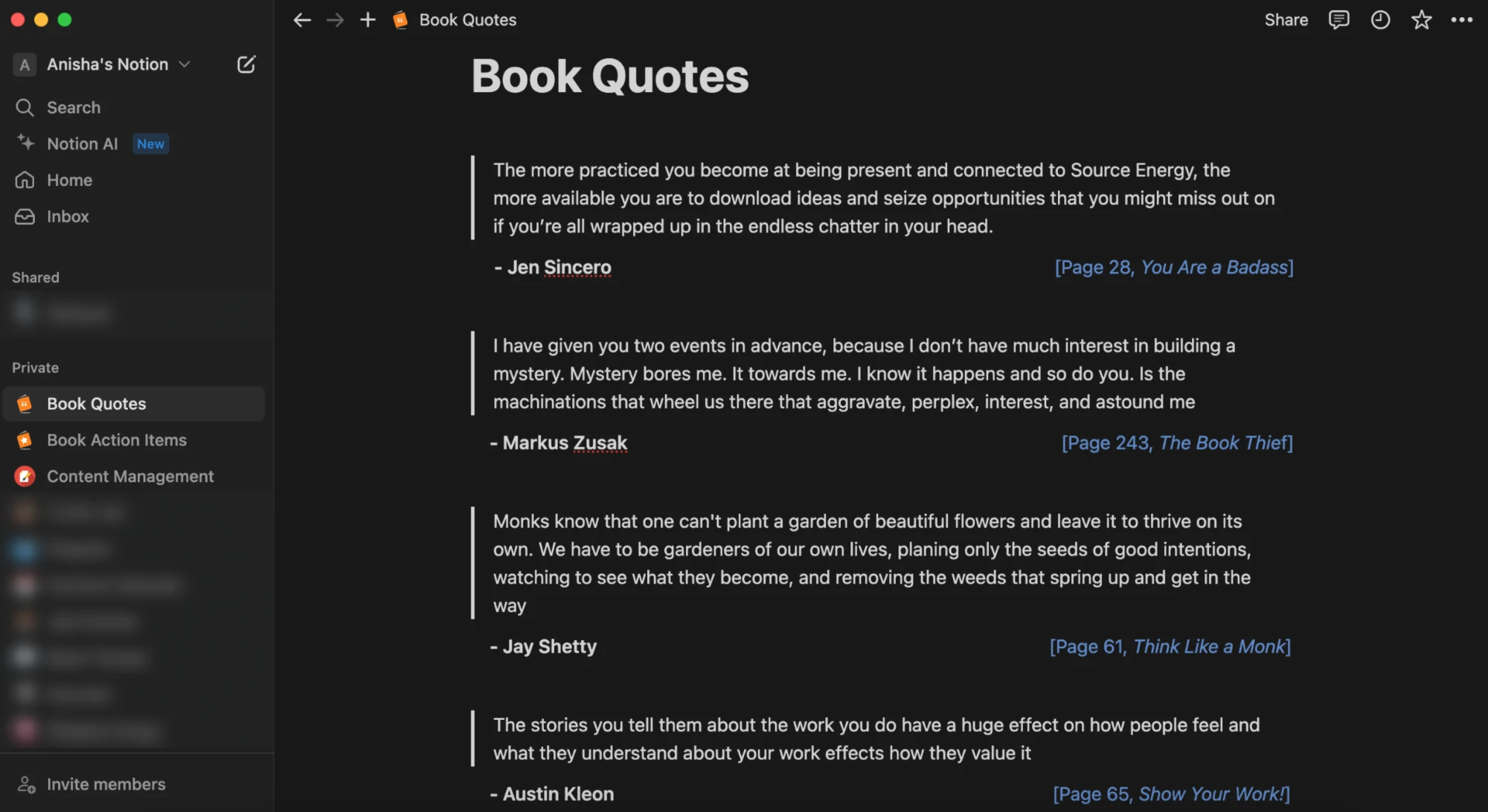
You Are a BadassAuthorJen SinceroStatusCompletedChapter 1The more practiced you become at being present and connected to Source Energy, the more available you are to download ideas and seize opportunities that you might miss out on if you’re all wrapped up in the endless chatter in your head.- pg 28
The Book ThiefAuthorMarkus ZusakStatusReadingMystery bores me.
Think Like a MonkAuthorJay ShettyStatusPausedMonks know that one can’t plant a garden of beautiful flowers and leave it to thrive on its own.- pg 61
Select & Compile
Book QuotesShare
Book Quotes
The more practiced you become at being present and connected to Source Energy, the more available you are to download ideas and seize opportunities that you might miss out on if you’re all wrapped up in the endless chatter in your head.– Jen Sincero[Page 28, You Are a Badass]
Mystery bores me.– Markus Zusak[Page 243, The Book Thief]
Monks know that one can’t plant a garden of beautiful flowers and leave it to thrive on its own.– Jay Shetty[Page 61, Think Like a Monk]
01
Project Overview
Notion is one of the fastest growing productivity applications on the market. It is consistently rising in user popularity due to its simplicity, but also for its feature packed all-in-one workspace which takes out the need to jump between multiple productivity tools. It is a web-based tool that includes the capability of note-taking, project management, and knowledge management.
Notion is a single space where you can think, write, and plan. Capture thoughts, manage projects, or even run an entire company — and do it exactly the way you want.
For the past few years, I have been utilizing Notion as my Second Brain.
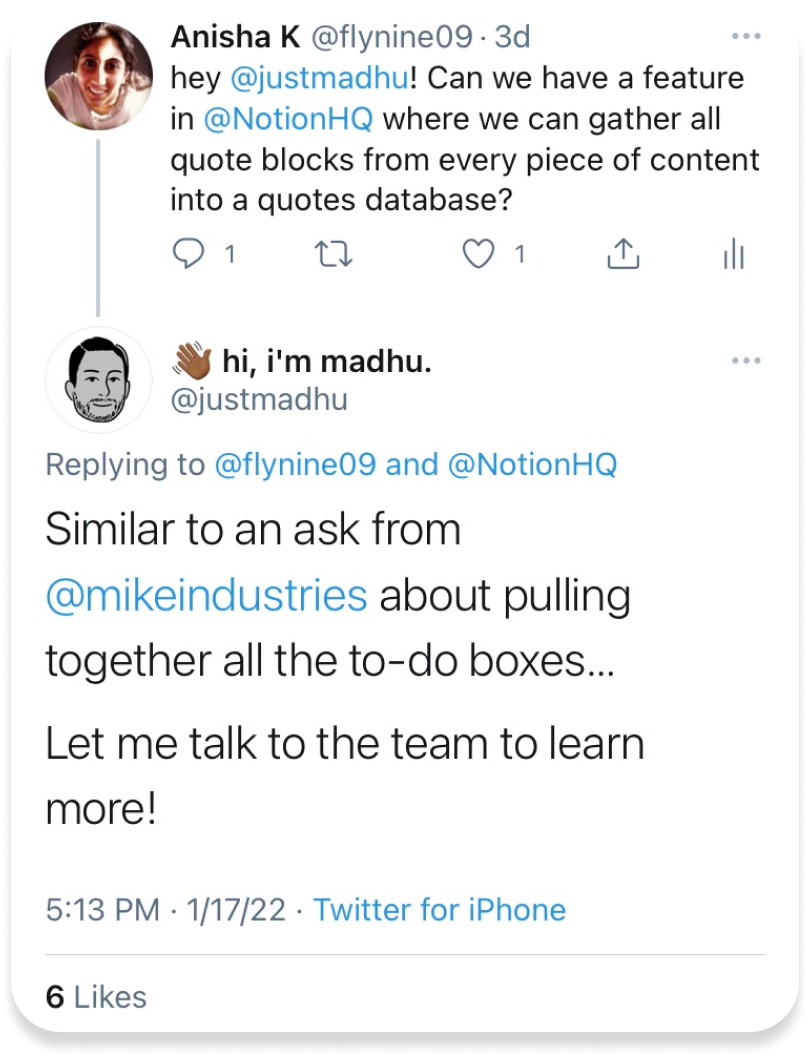
One of the ways I use it is to track books I’ve read and capture notes on them. That led me to send out this tweet to Notion’s Chief Product Officer Madhu Muthukumar.
Why stop at the quote block?
/Type to search
Quote
To-do list
Code
Callout
Date or reminder
Web bookmark
Close menuesc
Notion offers a diverse range of block types and data inputs — such as code blocks, callouts, dates, and bookmarks. With a “Select and Compile” feature that allows us to gather and integrate these elements into a unified view while tracking their sources, we unlock new possibilities for managing and interacting with information. This method not only enhances functionality, but also paves the way for exciting new features, enabling us to document, organize, and present data in more dynamic and innovative ways.
02
Where It Started
Before any research, the idea lived in my notebook.
First, I need to validate whether users truly desire this “select and compile” feature, so I conducted thorough research online to gather supporting evidence.
The User Stories
Next, I transformed these findings into user stories to clearly capture the users’ needs and expectations. Additionally, I introduced an idea of my own. Each story has been simplified to its core format, emphasizing the essential requirement:
User Story: As a user, I want to select and compile specific block types and data inputs so that I can create consolidated views or lists and use them to enhance functionality and organization.
Sub-Story #1
As a user, I want to select and compile all to-do block types, so that I can create a master task list.
Sub-Story #2
As a user, I want to select and compile all dates so that I can create a master dates list (calendar).
Sub-Story #3
As a user, I want to select and compile all quote blocks so that I can create a master quote list.
Sub-Story #4
As a user, I want to select and compile all action-item elements so that I can create a master action-item list.
04
The Competition
Before addressing these user stories, it’s important to consider the competition and assess how well they can execute similar tasks.
At a glance
How well each tool can build a master list of each kind, from exploring their platforms and reviewing YouTube tutorials.
Built in
Can be built with a workaround or plugin
Manual or not supported
Tool
Master to-do list
Master dates list
Master quotes list
Master action items
Roam Research
Queries across notes
Date references and custom queries, lots of manual effort
Tag and query quotes across notes
Bi-directional links and graph view
Bear
Basic checkboxes
No calendar
Tags within notes, then manual
Markdown tasks, needs workarounds
Evernote
A central Tasks view across notes
No native master calendar
Tags within notes, then manual
To-dos and tags, not specialized
Coda
Merge synced tables, built by hand
A calendar view of a table you build
Tables and filters you build yourself
Custom tables and databases
Obsidian
Basic, plugins help
Calendar plugin, not fully integrated
Plugins to query and organize
Plugins and Markdown notes
RemNote
Basic, ties into its knowledge base
No calendar
Tags within notes, then manual
Less intuitive for master lists
Assessed in 2022–23 from each platform and YouTube tutorials. These tools have changed since.
05
The Notion Way
Notion shares similar workarounds and limitations as its competitors, though it has some distinct aspects. In this section, I will discuss these differences and provide examples of workarounds, including some shared by individuals online.
Master to-do list
From a Reddit thread
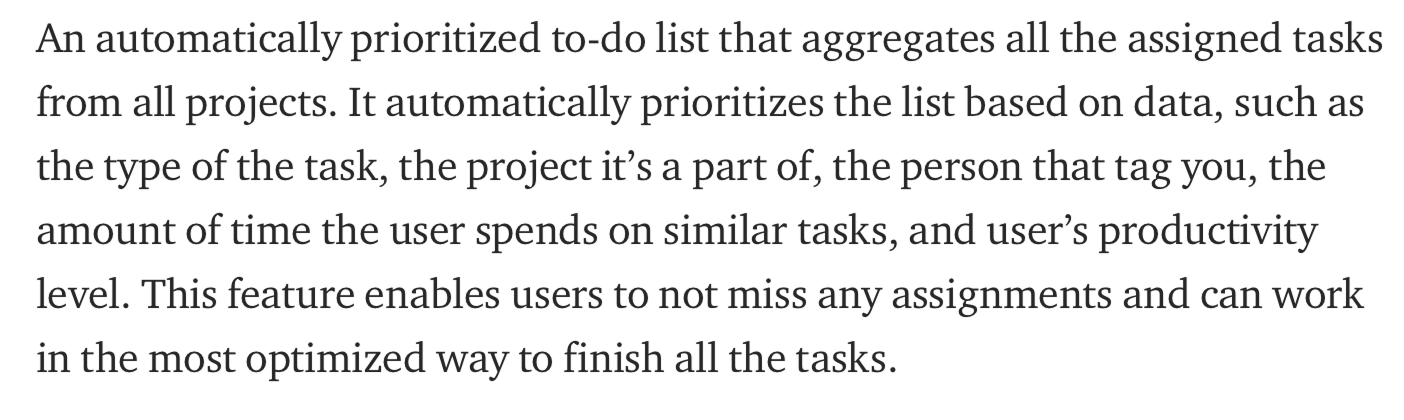
Like other platforms Notion has the ability to create to-do boxes. You may have many to-do lists among different databases. Unfortunately, Notion does not yet support combining these databases to create a master list.
Read More
There is a workaround (see above), but it is also limited by the fact that you can only use two databases. Thomas Frank explains it best.
Master dates list
Instagram
Twitter
YouTube
×
One master calendar
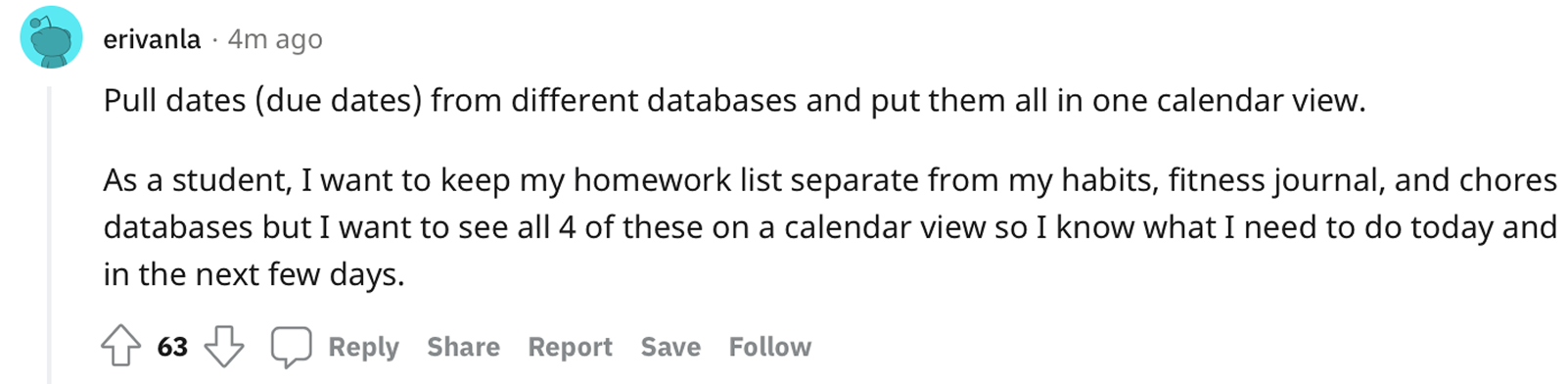
Unlike the other platforms, Notion makes it very simple to convert a list or database into a calendar view. However, like tasks, users are limited to only having one database appear on the calendar.
Read More
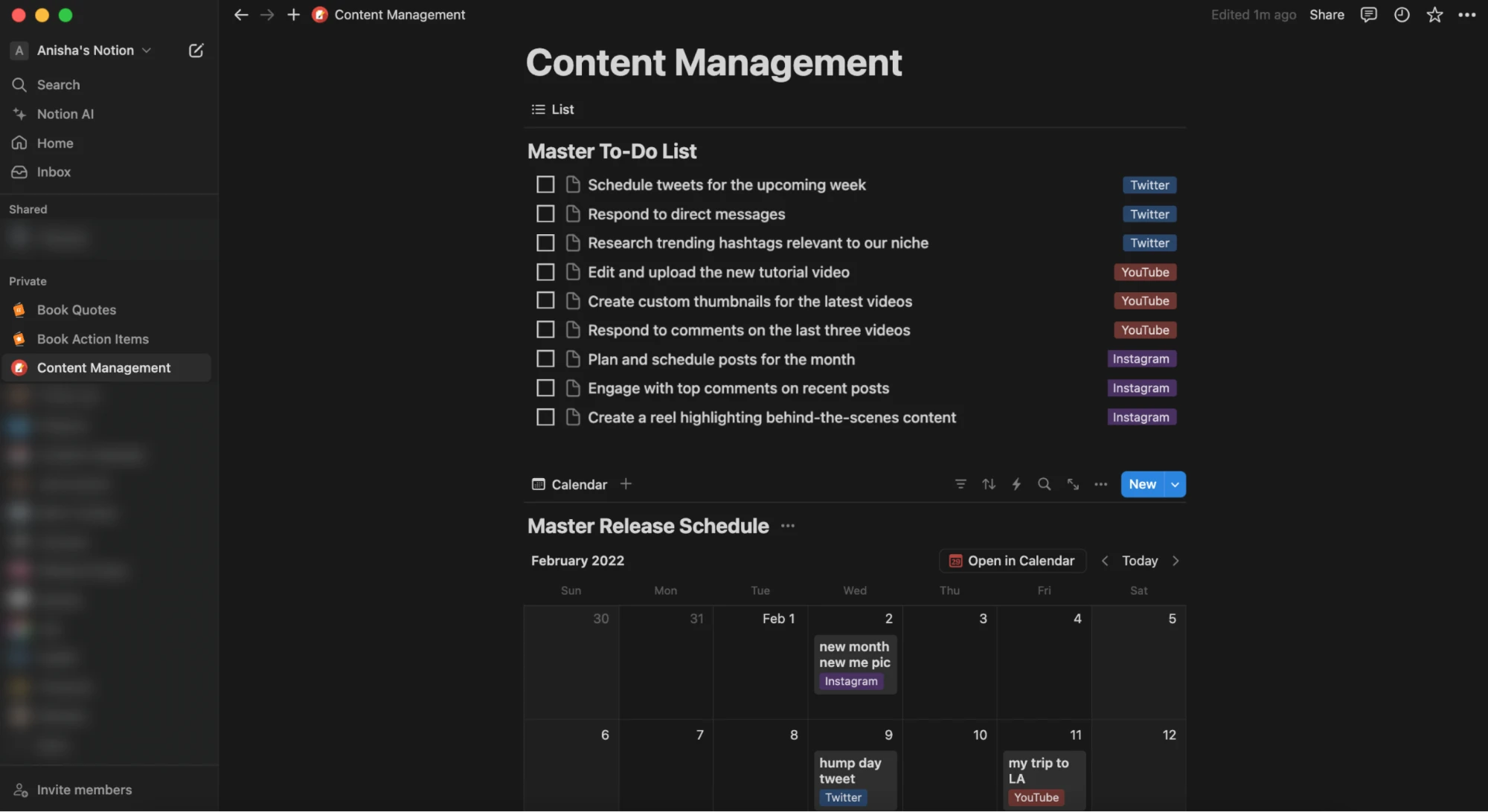
For example, let’s say you are trying to build a content calendar. You have separate pages for Instagram, Twitter, and YouTube. Each page has its own content calendar and you would like to combine all the content calendars into one master calendar. Notion is not able to do this because your data is spread across different databases. You can create one master content calendar database, but then you lose the option of having separate pages for each platform.
Master quotes list
From “How to Tag Like A Pro” by Red Gregory
Notion’s quote block feature is a simple yet effective way to highlight important text or quotes within a document, giving key information a distinct visual style. However, it lacks the ability to compile these quotes into a master list automatically. Users aiming to gather and organize quotes from multiple pages or databases must rely on manual collection or complex workarounds.
Read More
An example of a workaround is using a database to manually collect and organize quotes. Instead of simply using the quote block, users can create a dedicated “Quotes” database. Each time they want to save a quote, they add a new entry to this database, copying and pasting the quote text into a new record. Users can then use tags or properties to categorize the quotes for easier filtering and sorting. While this method allows for some level of organization, it requires extra steps and manual input, making it less efficient than an automated master list. This workaround also doesn’t integrate seamlessly with the existing quote block, meaning users have to choose between the visual appeal of the quote block and the organizational benefits of the database.
Master action items
My notes on Think Like a Monk by Jay Shetty
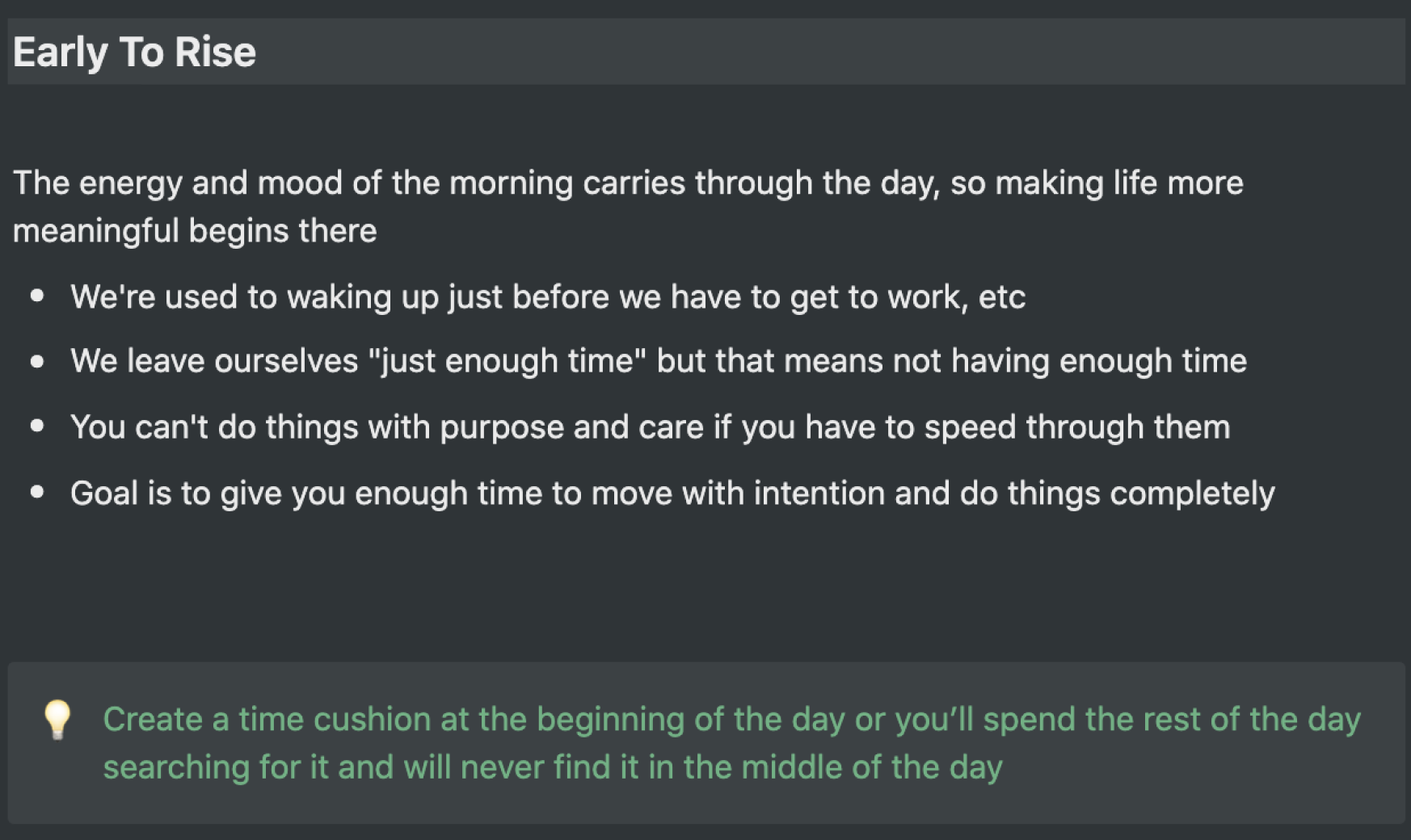
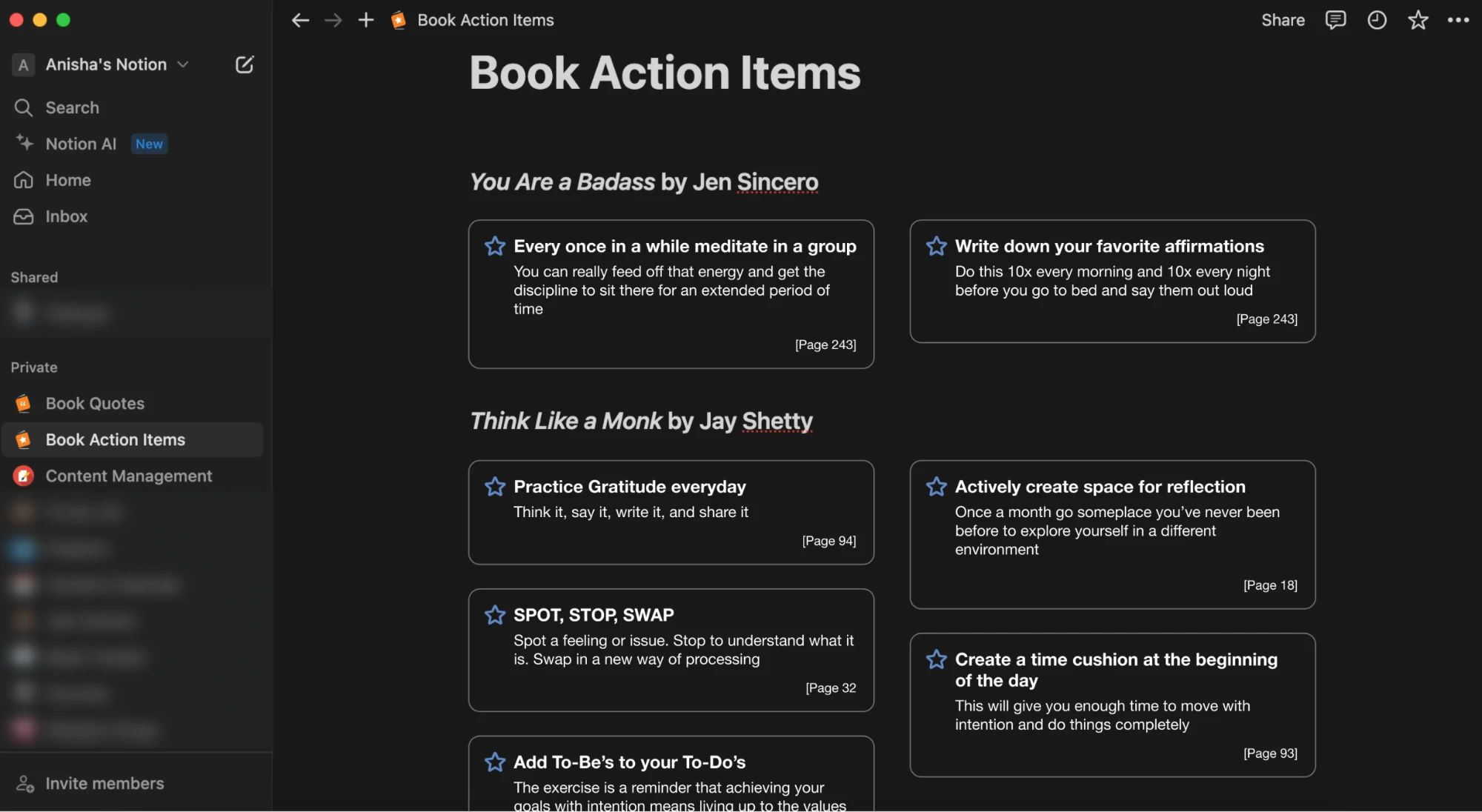
You can use a to-do/task list to achieve this and run into the same problem above, but in some cases users want to keep action items separate from to-do lists. For example, I use Notion to track the books I read and write notes on them.
Read More
A large segment of the books I read are self-improvement books, and when reading them it is important to not only take notes on the principles so I can remember them later, but it is also very effective to find a way to implement the principles in my life to get the best ROI. I do this by highlighting any action items suggested by the author or that I have derived from the text. At the end, I can go back and easily identify all the action items and create a list by book or even convert them to a to-do item down the road.
In this case I use green text to highlight the action item. I can scan my notes on the book later and easily identify the action items. There are other ways to highlight action items. For example, Notion has a block called “Callout”. I can use this to help the action items pop out from the rest of the notes.
While this is one of the ways to highlight the action items, we again run into the problem of aggregating all the action items into a master list.
06
The Solution
Let’s revisit the user story:
User Story: As a user, I want to select and compile specific block types and data inputs so that I can create consolidated views or lists and use them to enhance functionality and organization.
Our goal is to create a solution that is as user-friendly as possible. We want direct, convenient solutions, not workarounds. I’ve been referring to the proposed feature as “select and compile,” though Notion could come up with a more suitable name. Let me explain how it would work.
Notion should introduce two new blocks under “Advanced Blocks.”
/Type to search
Advanced blocks
Select and Compile - Full PageNew
Select and Compile - InlineNew
Close menuesc
The inline option would enable users to organize similar data types into separate master lists within a single page, or different data types into separate master lists on a single page.
How it works
Once a block is added, the user picks where to pull from, a database or a page, and what to pull: a block type like quotes or to-dos, or a property like dates. The master list stays up to date as the sources change. Every item keeps a link to its source, so one click takes you back to the exact page and spot it came from.
Why a new block?
Linked databases and synced blocks show one database in many places, but they can’t gather many pages and databases into one list. Today that takes a master database set up in advance, like the workaround in the Reddit post. Select and Compile closes that gap without asking people to restructure their workspace first.
Scenarios
Confused? Here are examples illustrating these three scenarios.
1
Full Page
Let’s say that a user would like to create a master list of all the quotes from all their book notes.
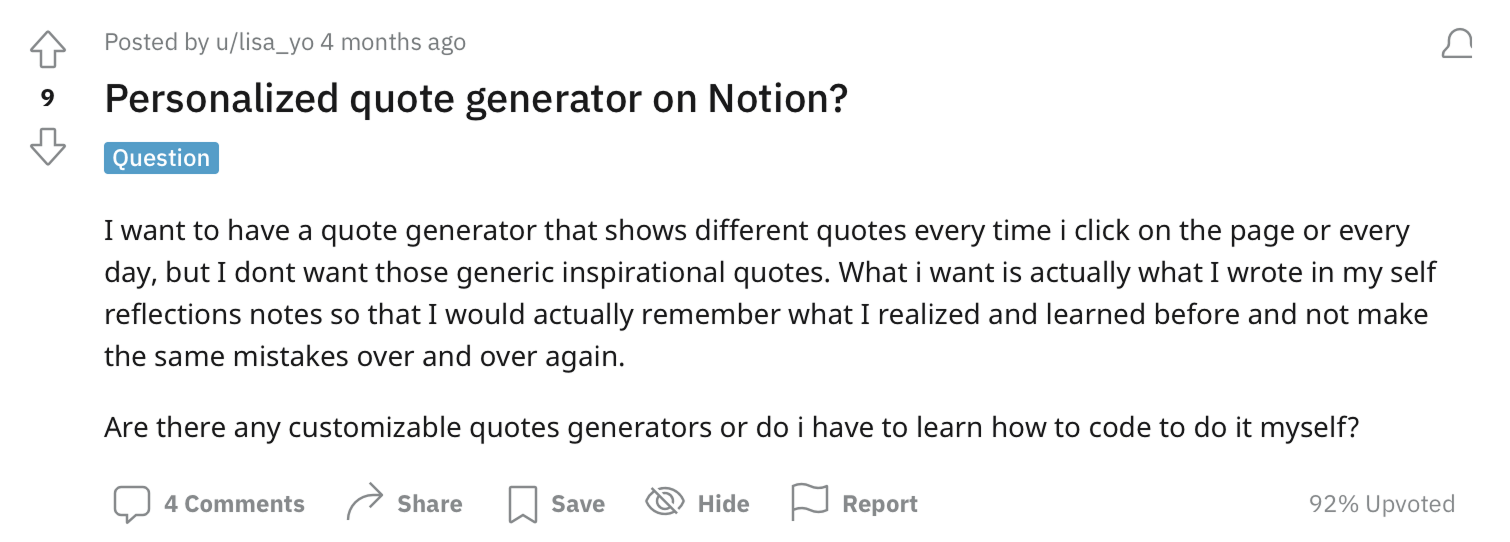
Extra: A full quote list also makes a random daily quote generator easy to build, with no Notion API needed.
2
In-Line: same data type into separate lists
Let’s say that a user would like to create a dashboard where they can compile all the action items from book notes and organize it by book.
3
In-Line: different data types into separate lists
Let’s say that a user has a page for their Twitter, Instagram, and YouTube. They would like to create a dashboard where the to-dos of every social platform page is compiled into a master to-do list and then next to it there is a master list of all the scheduled posts across all platforms. In this case, the user is creating a master to-do list and a master dates list on the same page.
07
Overall User Flow
Select a branch, like Yes or Inline, to trace one path through the flow.
08
What I’d Test Next
Time to build a master list, compared with today’s workaround
Repeat use: how many people make a second master list after their first
Trust: whether people click through to the source
Edge cases: a deleted source, the same item in two lists, who can see what
There are many other considerations and user tests that need to be conducted, but this is an initial concept proposal (Notion, hit me up!). I believe the proposed “Select and Compile” feature will not only make Notion the best application for creating a Second Brain, but will also significantly enhance its differentiation value.